5 Windows Terminal Customizations Every IT Student Needs for Thesis Research

For any Information Technology undergraduate, the transition from casual coding to intensive thesis research is a significant milestone. This period demands more than just basic computing skills; it requires an environment that fosters deep focus and technical agility. The Windows Terminal has evolved into the central hub for this workflow, offering a powerful, multi-tabbed experience that can handle PowerShell, Command Prompt, and WSL (Windows Subsystem for Linux) simultaneously. By tailoring this tool to your specific research needs, you can transform a simple command line into a sophisticated academic workstation.
When you are deep in the trenches of data analysis or network simulation, the last thing you want is a cluttered or unresponsive interface. Managing the sheer volume of technical documentation and code execution often leads students to seek expert do my assignment online resources to ensure their logical frameworks meet rigorous university standards. While external support helps manage the workload, a well-optimized terminal ensures that when you are working, your tools are helping rather than hindering your progress.
1. Implementing Quake Mode for Instant Accessibility
Thesis research often involves a “constant context-switch.” You might be reading a PDF one moment and need to test a quick Python script the next. Quake Mode is a hidden gem in Windows Terminal that allows the application to drop down from the top of your screen with a simple keyboard shortcut (typically `Win + “).
For a student, this means your research environment is always one keystroke away. Instead of hunting through a dozen open windows to find your console, you can summon it, run your command, and dismiss it instantly. This keeps your desktop clean and your mind focused on the core narrative of your thesis rather than window management.
2. Leveraging Descriptive Color Schemes for Mental Mapping
Visual fatigue is a real threat during long night sessions in the lab. The default high-contrast colors can be straining. Customizing your color schemes—using palettes like Solarized Dark or Dracula—not only protects your eyes but also helps in categorizing different tasks.
| Feature | Customization Benefit | Academic Use Case |
| Solarized Dark | Reduced blue light strain | Long-form technical drafting |
| High Contrast | Maximum readability | Outdoor or bright-room data logging |
| Retro Effects | Visual distinction | Distinguishing legacy system simulations |
By assigning a specific color scheme to your WSL instance and another to PowerShell, you create a visual “mental map.” This reduces the risk of running a destructive command in the wrong environment, a mistake no researcher wants to make during a final data run.
3. Integrating Oh My Posh for Real-Time Status Tracking
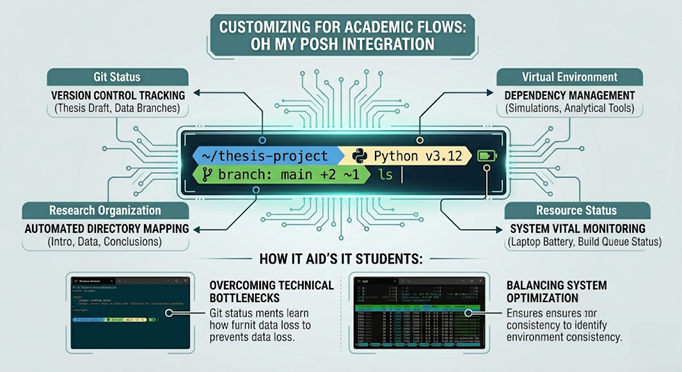
One of the most powerful customizations is adding a specialized prompt engine like Oh My Posh. This tool adds visual indicators to your command line, showing you exactly which Git branch you are on, the status of your Python virtual environment, or even the battery level of your laptop.
As your project grows in complexity, keeping track of different versions of your research data becomes a major hurdle. When the technical requirements of a specific module become too dense, students often find that MyAssignment Services provides the necessary it assignment help to bridge the gap between complex system architecture and a polished final submission. Seeing your Git status directly in your terminal ensures you never lose track of your progress while working through these advanced configurations.
4. Splitting Panes for Side-by-Side Data Analysis
The ability to split your terminal window into multiple panes is a game-changer for thesis work. Imagine having your data scraping script running in the top pane, your system monitor (like htop) in the bottom pane, and a live log file scrolling on the right.
This layout allows you to observe cause-and-effect in real-time. If your simulation hits a memory limit, you see it instantly without flipping through tabs. It mirrors the professional “Command Center” environment used by DevOps engineers, preparing you for the industry while simultaneously making your academic research more efficient.
5. Configuring Custom Actions and Keybindings
Efficiency in research is built on the foundation of “seconds saved.” Windows Terminal allows you to map complex actions to simple key combos. You can create a shortcut that opens three specific tabs—your research directory, your local server, and your documentation folder—all at once.
Standardizing these shortcuts means that starting a study session takes zero mental effort. You press your custom keybind, and your entire academic environment is ready for action. This reduces “activation energy” and helps you get into a flow state much faster.
Why Customization Matters for Undergraduates
For a student, the goal of customization isn’t just about “looking cool.” It is about reducing the friction between an idea and its execution. When your terminal is optimized, you spend less time wrestling with your computer and more time synthesizing information. This technical fluency is a core competency that will serve you long after your thesis is submitted and you enter the professional global workforce.
Whether you are managing a SQL database for a final project or simulating a neural network, your tools should be an extension of your thought process. By mastering the Windows Terminal now, you are building the professional habits required for a career in high-level IT and software development.
Seen also: From Startup to Scale: Building a Business Around DTF Transfer Printing
Frequently Asked Questions (FAQ)
Q1: Will these customizations slow down my computer?
No. Windows Terminal is designed to be lightweight. While some prompt engines like Oh My Posh add a tiny fraction of a second to the startup time, the impact on overall system performance is negligible, even on mid-range student laptops.
Q2: Can I sync my Terminal settings across multiple devices?
Yes. Windows Terminal stores its configuration in a settings.json file. You can back this file up to your cloud storage (like OneDrive or Google Drive) and copy it to any new machine to instantly restore your personalized setup.
Q3: Do I need to know how to code to customize my terminal?
Not necessarily. While the settings are stored in JSON format, there is a built-in Settings UI that allows you to change colors, fonts, and keyboard shortcuts using a standard menu interface.
Q4: Is Oh My Posh difficult to install for beginners?
The installation is straightforward using managers like ‘winget’ or ‘Homebrew’. There are many community-made “themes” that you can download and apply with a single line of code, making it accessible even for first-year IT students.
Q5: Why is Git integration important for a thesis?
Version control is vital for research. If you make a mistake in your data processing script, Git allows you to “time travel” back to a working version. Seeing this status in your terminal prevents you from accidentally overwriting important work.
About The Author
Hi, I’m Min Seow, an academic consultant at MyAssignment Services. My professional focus centers on bridging the gap between advanced technical skills and career readiness for students in global markets.